

How to create an eParaksts mobile test user
Before you start
- Open the eParaksts demo portal: https://devapp-demo.eparaksts.lv/
- Prepare one of the following personal e-Identity authentication tools:
- eParaksts mobile
- eID card
- internet banking
- Install the eParaksts mobile test application on the smart device that will be used to create the test identity.
Create a test user
-
Get acquainted with and confirm the terms of use of the website.
-
Log in with your personal e-Identity authentication tools such as eParaksts mobile, eID card, or internet banking
-
Choose the option Create new and enter the necessary data.
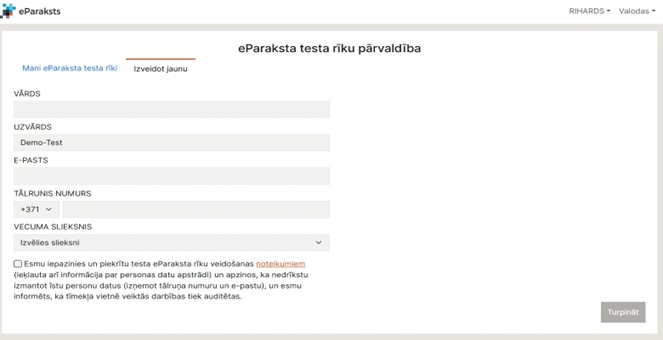
- Once all the data is filled in, confirm that you agree to the terms of creating the test identity and processing personal data, and click "Continue".
- To proceed with creating the test identity, scan the QR code in your smart device using the eParaksts mobile test application, or pass the QR or numeric codes to another tester who can complete the test identity creation on their smart device.
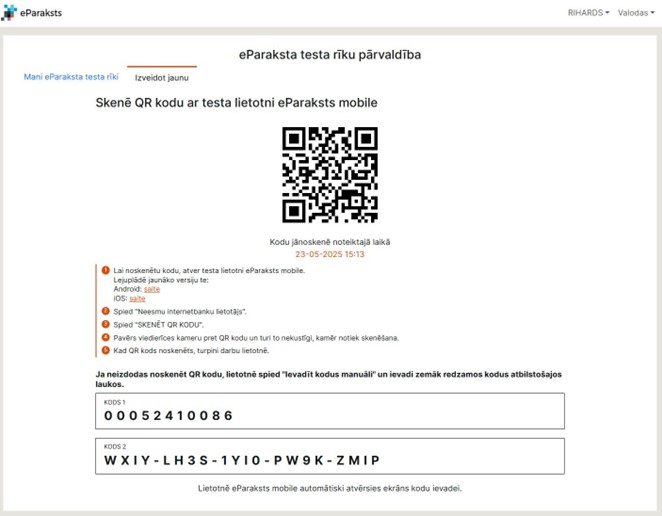
- After successfully creating the test e-Identity, you will receive instructions on how to create an eParaksts mobile signing certificate and an eZīmogs+ cloud certificate on the screen:
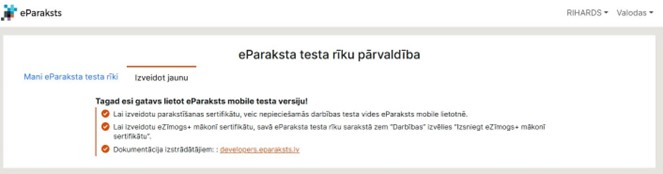
Optional: Create an eParaksts mobile signing certificate
To create an eParaksts mobile signing certificate, follow the instructions in the demo eParaksts mobile application.
Optional: Issue an eZīmogs+ cloud certificate
To issue an eZīmogs+ cloud certificate:
- Open your eParaksts test tools list.
- Select Actions.
- Select Issue eZīmogs+ cloud certificate.
- Log in with the newly created eParaksts mobile test user.
- Set up the electronic seal password.
Use the eParaksts mobile test application to create the test identity. The production eParaksts mobile app is not used for this step.
Updated 4 months ago
Did this page help you?