

AD FS eParaksts Mobile Authentication Module
Installation
-
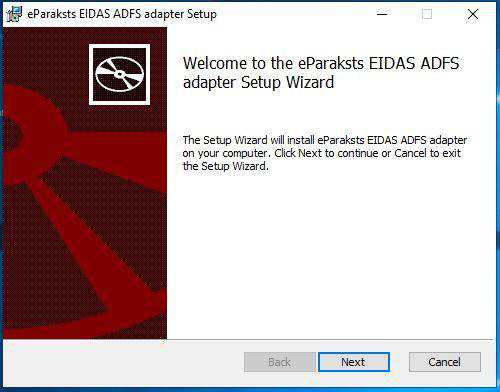
Run:
eParaksts-ADFS-Adapter-{version}.msi -
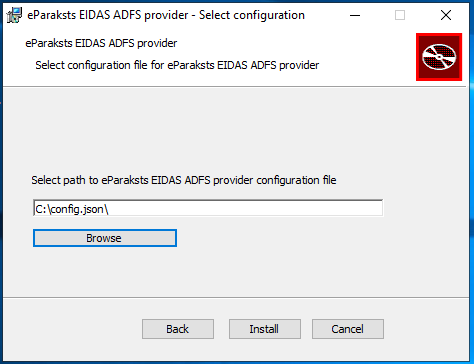
Provide configuration JSON file during installation.
-
AD FS service will restart automatically.
Configuration Example
{
  "host": "eidas-demo.eparaksts.lv",
  "client_id": "test",
  "client_secret": "password",
  "authorization_server": "lvrtc-eipsign-as",
  "authorization_scope": "urn:lvrtc:fpeil:aa",
  "userinfo_givenname_field": "given_name",
  "userinfo_familyname_field": "family_name",
  "userinfo_identity_field": "serial_number",
  "acr_values": "urn:eparaksts:authentication:flow:mobileid",
  "ldap_trustedx_identity_attribute": "eParakstsADFSIdentity",
  "ldap_trustedx_login_hint_attribute": "eParakstsADFSUserName",
  "identity_linking_policy": "link_identity_by_fullname"
}
Enable Module
- Open AD FS Management
- Navigate to:
Services > Authentication Methods - Edit Multi-factor Authentication Methods
- Enable:
eParaksts EIDAS Authentication Adapter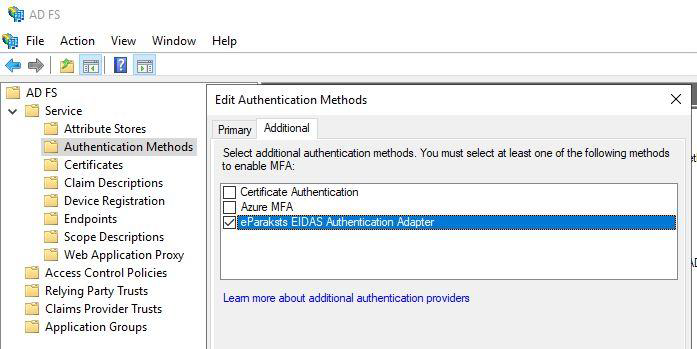
AD Attributes
If required AD attributes do not exist:
- Run:
Create_EparakstsProvider_AD_attributes.ps1 - Execute on the AD server used by AD FS.
Testing
Microsoft provides a tool to test ADFS. Configuration should be performed according to the instructions available at: AD FS eParaksts Mobile Authentication Module - Administrator's Guide
The Administrator's GuideThe administrator's guide for performing a successful installation of the AD FS module can be found here.
Updated 3 months ago
Did this page help you?